
The Backup and Restore window allows you to create complete backups of your PrimeExam data and restore previously created backups.
Regular backups help protect your work against accidental deletion, hardware failure, or other unexpected problems.
PrimeExam can also remind you periodically to create backups.
What Is Included in a Backup?
A PrimeExam backup contains all information needed to restore your work, including:
- PrimeExam database
- Images
- Image thumbnails
- User templates
- Application settings
- Topic files
- Published exams
- Log files
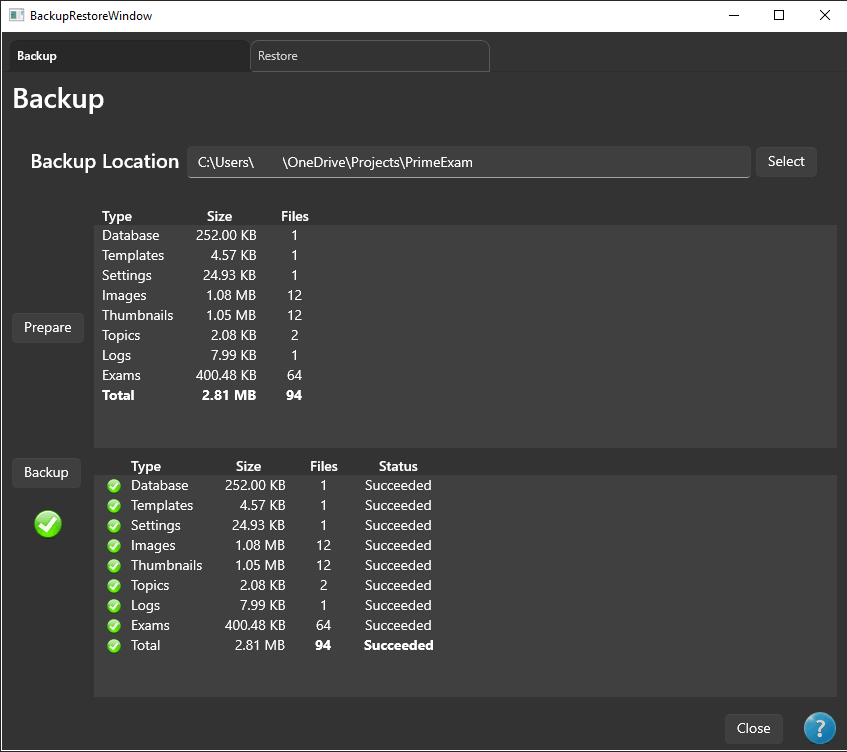
Images and thumbnails are always included in every backup. They are stored in the same backup location as the rest of the application data.
This simplifies both backup and restore operations and eliminates the need to recreate image thumbnails after a restore.
Backup Reminders
PrimeExam can remind you to create backups on a regular schedule.
If backup reminders are enabled, a reminder will appear when the configured interval has elapsed since the previous reminder.
You can choose to create a backup immediately or postpone the reminder until a later time.
Creating a Backup
To create a backup:
- Open the Backup and Restore window.
- Select Backup from the navigation pane on the left.
- Choose the folder where backups will be stored.
Backup folders may be located:
- On another folder on the same computer.
- On an external USB drive.
- On a network drive.
- In a folder synchronized by a cloud storage service.
Using a location on another physical drive provides additional protection against hardware failure.
Preparing the Backup
Before performing the backup, click Prepare.
PrimeExam examines the files that will be included and displays:
- Each file or folder to be backed up.
- File sizes.
- The estimated total backup size.
This allows you to verify the backup before it begins.
Performing the Backup
After reviewing the backup contents:
- Click Backup.
- Wait for the operation to complete.
The results list displays the status of each item as it is backed up.
When the operation finishes, the backup is ready for future restoration if needed.
Restoring a Backup
To restore a previous backup:
- Open the Backup and Restore window.
- Select Restore from the navigation pane.
- Choose the backup location.
The Restore page displays all backups found in the selected location.
Select the backup you wish to restore.
PrimeExam displays information about the selected backup, including:
- Backup date and time.
- Files included in the backup.
- File sizes.
After verifying that you have selected the correct backup, click Restore.
PrimeExam restores the backup contents to the local application data.
Restarting PrimeExam
After a restore operation completes, restart PrimeExam.
Restarting ensures that the restored database, settings, topics, templates, and other files are fully reloaded.
Best Practices
To protect your work:
- Create backups regularly.
- Keep multiple generations of backups instead of relying on a single backup.
- Store backups on a different physical drive whenever possible.
- Periodically verify that backups can be restored successfully.
- Create a backup before making major changes to question banks, topic groups, or other important data.