
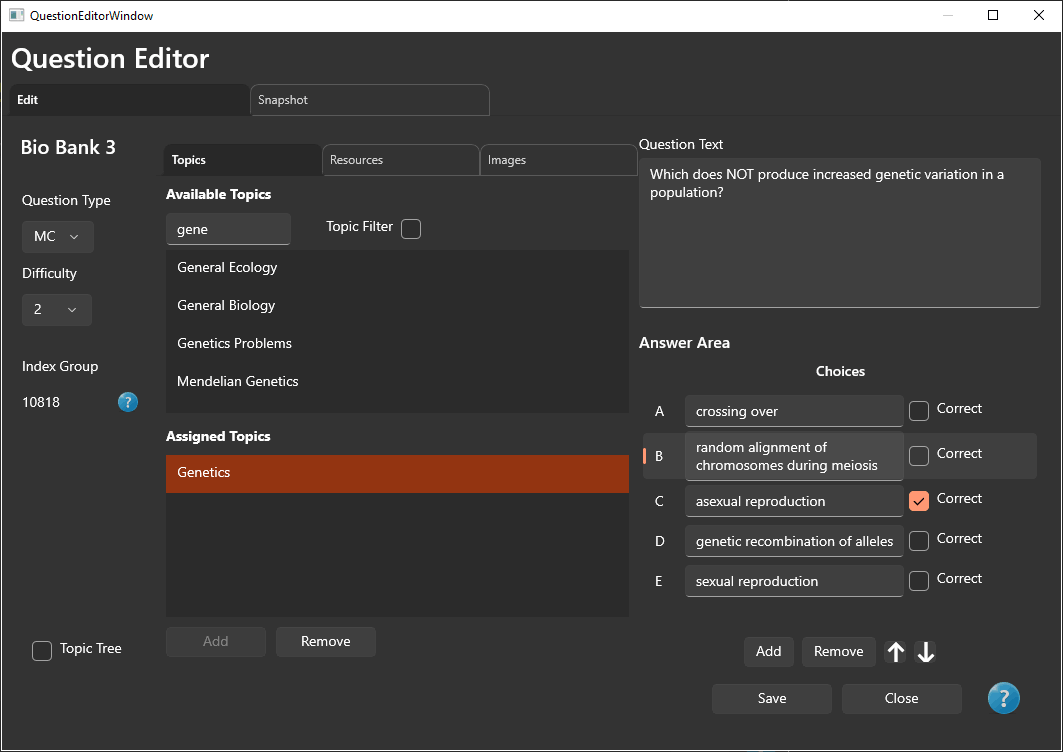
The Question Editor is where you create and modify the information associated with a question.
Nearly all question attributes are managed from this window, including question text, difficulty, topics, resources, images, answer choices, and answer information.
Opening the Question Editor
To edit a question:
- Open the Question Bank window.
- Select the desired question bank.
- Select the question you want to edit.
- Click the Edit button.
Alternatively, you can simply double-click a question in the question list to open the Question Editor.
Question Attributes
The Question Editor allows you to assign or modify the following information:
- Question type (Multiple Choice, True/False, Fill-In, Short Answer, or Essay)
- Difficulty level
- Question index
- Associated topics
- Associated resources
- Associated images
- Question text (referred to as the Stem in PrimeExam)
- Answer choices for multiple-choice questions
- Correct answer
- Answer text used when generating answer keys
Providing complete question information improves question organization, searching, statistics, and exam generation.
Question Types
PrimeExam supports several question types, including:
- Multiple Choice (MC)
- True/False (TF)
- Fill-In (FI)
- Short Answer (SA)
- Essay (ES)
The available editing controls change automatically depending on the selected question type.
Multiple-Choice Questions
For multiple-choice questions, the Question Editor allows you to:
- Add or remove answer choices.
- Edit the text of each choice.
- Select the correct answer.
Future versions of PrimeExam will also support assigning images to individual answer choices.
Mathematical Expressions
PrimeExam supports mathematical notation within question text and answer text.
Mathematical expressions can be entered using the Symbol Editor.
Future versions of PrimeExam will also support mathematical expressions within answer choices.
Assigning Topics, Resources, and Images
The Question Editor allows questions to be associated with:
- Topics
- Resources
- Images
These associations improve searching, organization, statistics, and random exam generation.
Using the Topic Tree Filter
The Topic Tree can be used to filter the available lists of topics, resources, and images.
Enable the Topic Filter checkbox to restrict the available items based on the selected topic in the Topic Tree.
When the Topic Filter is enabled:
- The available topic list displays only topics within the selected branch of the Topic Tree.
- The available resource list displays only resources associated with topics in the selected branch.
- The available image list displays only images associated with topics in the selected branch.
This makes it much easier to locate the correct topics, resources, and images when working with large collections.
Question Snapshot
The Snapshot tab provides a quick summary of the currently selected question.
It displays the question's attributes in a compact format, making it easy to review questions without switching between multiple editor tabs.
The Snapshot is particularly useful when browsing through a question bank using:
- Mouse selection
- The Up and Down arrow keys
As the selected question changes, the Snapshot is updated automatically.
Saving Changes
Changes made within the Question Editor are not saved until you click Save.
If you close the editor before saving, PrimeExam will prompt you to save or discard your changes.