
The Topic Editor is used to manage the topic groups available in PrimeExam.
Topics provide a hierarchical way to organize questions, images, and resources. They improve searching, filtering, statistics, and random exam generation.
Topic Groups
Topics are organized into topic groups.
A topic group represents an entire subject area, such as:
- Biology
- Chemistry
- Mathematics
- Physics
Each topic group contains a hierarchy of related topics beginning with a single topic group root.
The topic group root is the top-most node of the topic tree and represents the subject as a whole.
All other topics within the group descend from this root.
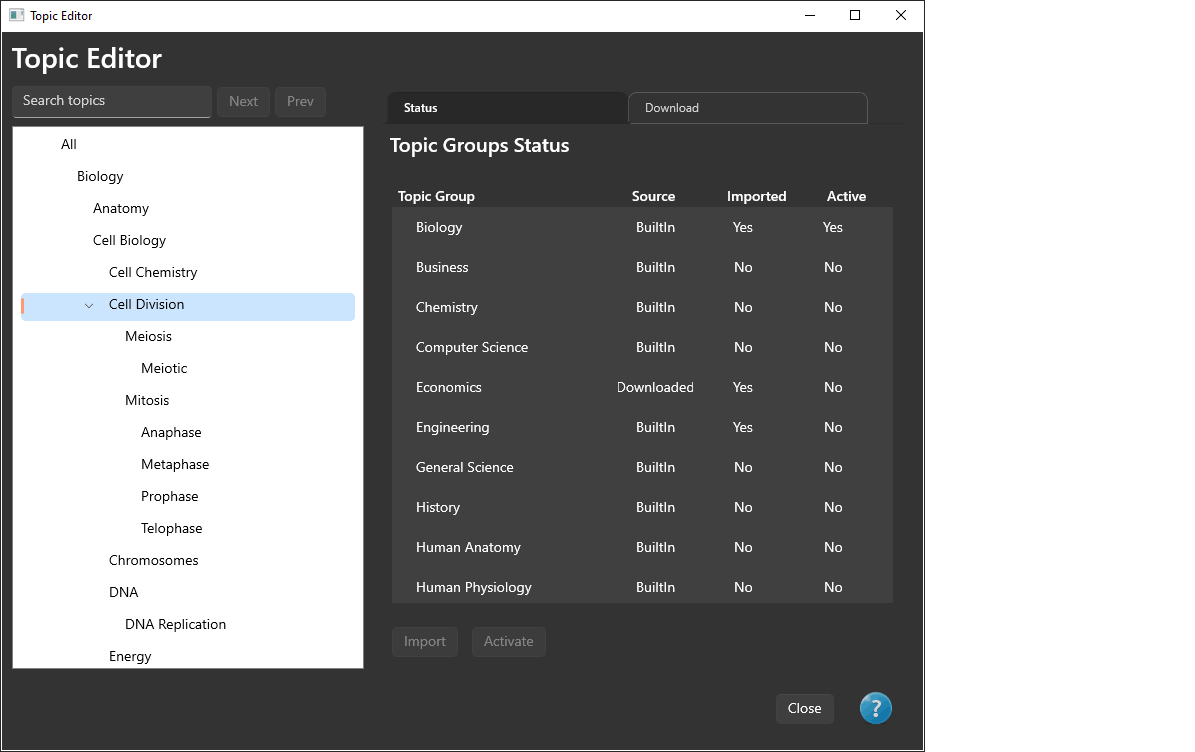
Built-in and Downloaded Topic Groups
PrimeExam supports two types of topic groups:
- Built-in topic groups that are installed with PrimeExam.
- Downloaded topic groups that can be obtained from the PrimeExam website.
Only a small number of topic groups are included with the application. Additional topic groups may be downloaded as they become available.
Importing a Topic Group
Before a topic group can be used, it must first be imported into the PrimeExam database.
To import a topic group:
- Open the Topic Editor.
- Select the Status tab.
- Select the desired topic group.
- Click Import.
Once imported, the topic group becomes available for activation.
Activating a Topic Group
Only one topic group may be active at any time.
The active topic group supplies the Topic Tree used throughout PrimeExam.
To activate a topic group:
- Open the Topic Editor.
- Select the Status tab.
- Select the imported topic group.
- Click Activate.
The selected topic group immediately becomes the active topic group.
Using the Active Topic Group
The active topic group appears in every window that displays a Topic Tree, including:
- Question Bank Window
- Question Editor
- Image Editor
- Resource Editor
If one of these windows is already open when a different topic group is activated, close and reopen that window to display the newly activated Topic Tree.
Downloading Topic Groups
Additional topic groups may be downloaded from the PrimeExam website.
To download a topic group:
- Open the Topic Editor.
- Select the Download tab.
- Select the desired topic group.
- Click Download.
Downloaded topic groups appear in the Status tab and may then be imported and activated.
Editing Topics
After a topic group has been imported, you may customize it by adding or renaming topics.
Adding a Topic
To add a topic:
- Select the topic under which the new topic should be created.
- Right-click the selected topic.
- Choose Add New Topic.
- Enter the new topic name.
- Click Add.
The new topic is created as a child of the selected topic.
Topic Names
Within a single topic group, every topic name must be unique.
Two topics in the same topic group cannot have exactly the same name.
Renaming a Topic
To rename a topic:
- Select the topic.
- Right-click the topic.
- Choose Rename.
- Enter the new name.
- Click Rename.
The topic group root cannot be renamed.
Deleting Topics
The current version of PrimeExam does not allow topics to be deleted.
This restriction helps preserve the integrity of topic assignments throughout the database.
Future versions of PrimeExam may provide additional topic management features.
Best Practices
To get the most benefit from the Topic Editor:
- Import only the topic groups that you intend to use.
- Activate the topic group that matches the subject you are currently authoring.
- Assign descriptive and unique topic names.
- Keep the topic hierarchy organized from general subjects to more specific concepts.
- Assign topics consistently to questions, images, and resources to improve searching and exam generation.