Randomized Exam Generator for Teachers and Educators

Create exams from reusable question banks, control how questions are selected, and prepare multiple forms with randomized question or answer-choice ordering using PrimeExam for Windows.

PrimeExam brings question selection, exam organization, composition, and publishing into one desktop workflow. Build an exam manually or use the Random Exam Wizard, then compose the finished questions into forms for printing or distribution.
Generate an exam from your question banks

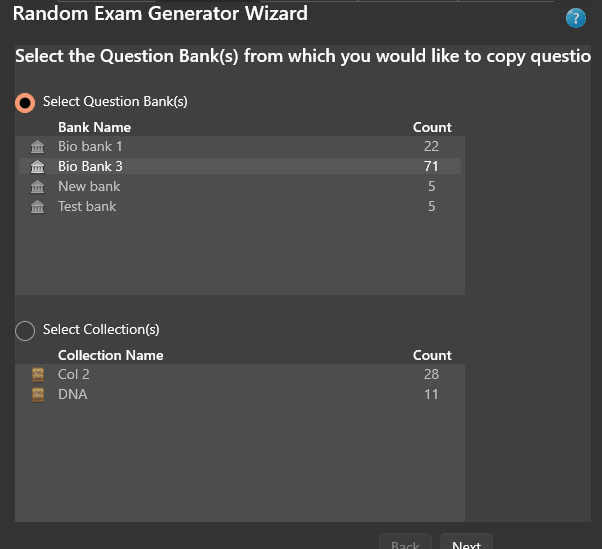
The Random Exam Wizard selects questions from one or more question banks according to your criteria. Choose an entire bank or select collections within a bank, then specify how many questions to include.

You can also create an exam manually by selecting questions from question banks and adding them through the Exam Editor, including by drag and drop.

PrimeExam Random Exam Wizard selecting question banks as sources for an exam
Select one or more question banks as the source for a generated exam. Click for the full-size screenshot.

Control the question selection criteria

Instead of choosing questions individually, set criteria to guide the random selection:

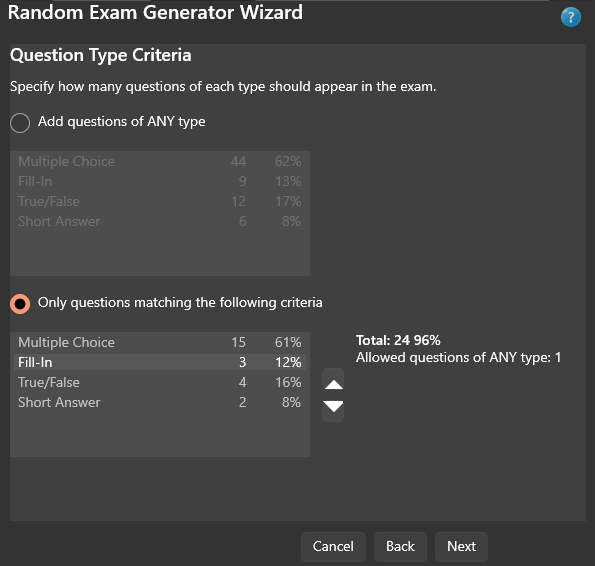
  • Question type: Allow the bank's natural distribution or request a preferred mix of question types.
  • Difficulty: Use any difficulty level or specify the proportions you want.
  • Topics: Select questions across topics or emphasize particular subject areas.
  • Resources: Refine selection using resource associations.

The wizard provides ANY and ONLY selection modes to help you balance the exam using the question attributes you've maintained.

PrimeExam Random Exam Wizard showing question type selection criteria
Set question type criteria when generating an exam. Click for the full-size screenshot.

Review the results before accepting the exam

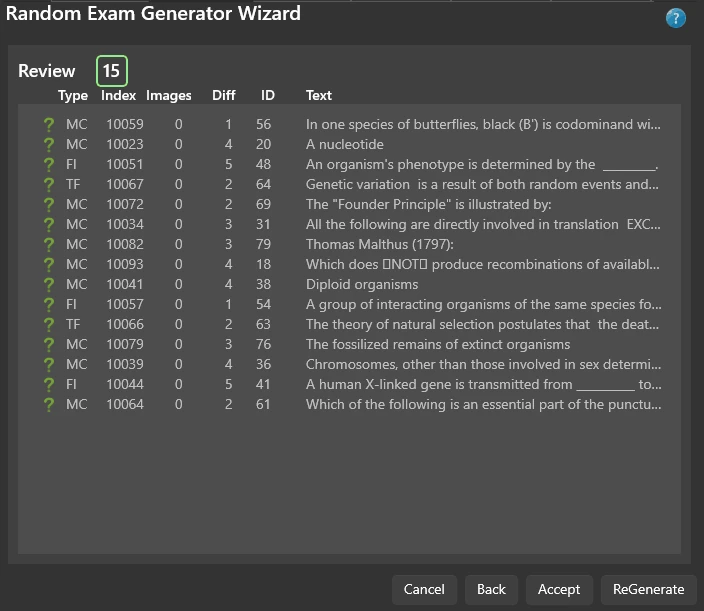
The wizard summarizes the selected questions and lets you review them before creating the exam. If the selection is not what you need, adjust the criteria or click Regenerate to try another random selection with the same settings.

When you accept the results, PrimeExam creates a new exam that you can review, edit, and compose for publishing.

PrimeExam Exam Editor showing an exam and its questions
Work with the resulting exam in the Exam Editor. Click for the full-size screenshot.

Organize exams by school, department, and course

PrimeExam V2 adds an Admin Tree for organizing courses beneath departments and schools. Associate an exam with a course, then filter the exam list by a selected course, department, or school. You can also display exams and saved compositions beneath their associated courses in the tree.

For instructors working with several courses or departments, this makes it easier to locate the exams associated with a particular teaching assignment. Exams without a course association remain accessible in the unfiltered exam list.

V2 feature: Admin Tree filtering, course associations, and the saved-composition workflow described below are documented for PrimeExam V2. Availability to Microsoft Store customers depends on the V2 rollout.

Compose multiple forms of the same exam

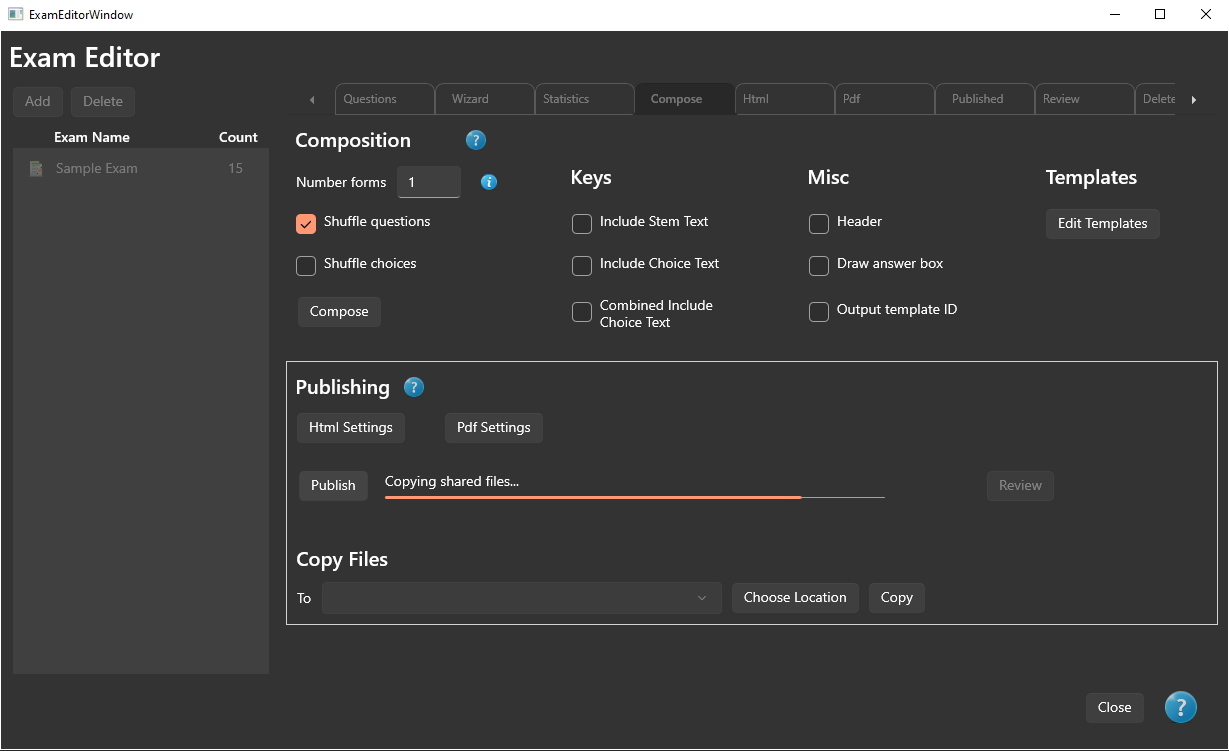
Once you've assembled the exam's questions, use the Compose tab to create one or more exam forms. Each form within a composition contains the same set of questions, while question order, answer-choice order, or both can vary.

  • Shuffle Questions: Randomize question order among forms.
  • Shuffle Choices: Randomize answer-choice order for multiple-choice questions.
  • Single or multiple forms: Create a single form without shuffling, or enable at least one shuffle option when generating multiple forms.
  • Answer keys: Generate keys that reflect each form's question and choice arrangements.

Compose creates the form arrangements; it does not yet generate the finished HTML or PDF exam files.

PrimeExam exam composition and publishing workspace
Use the Exam Editor's composition and publishing workflow. Click for the full-size screenshot.

Save, reopen, and manage exam compositions

A composition is a saved arrangement of an exam into forms. With the V2 composition workflow, you can create multiple distinctly named compositions for the same exam, save their generated form arrangements, and reopen them later without reshuffling the questions.

1. Create and Compose

Start a new composition, choose the form count and shuffling options, and generate the forms. The composition starts in a New state.

2. Save and Reopen

Save the generated forms to the database and reopen that exact arrangement later. Renaming a saved composition produces a Modified state until saved.

3. Publish and Manage

Publish the active composition when ready. Saved compositions can be deleted and restored separately from previously published files.

PrimeExam prompts you to save, discard, or cancel when leaving certain unsaved composition work. To create a different form arrangement from a saved composition, start a new composition rather than modifying its stored forms.

Publish exams and answer keys in HTML and PDF

After composing the forms, configure the HTML and PDF settings and publish. PrimeExam generates exam files and corresponding answer keys, including options for separate and combined keys.

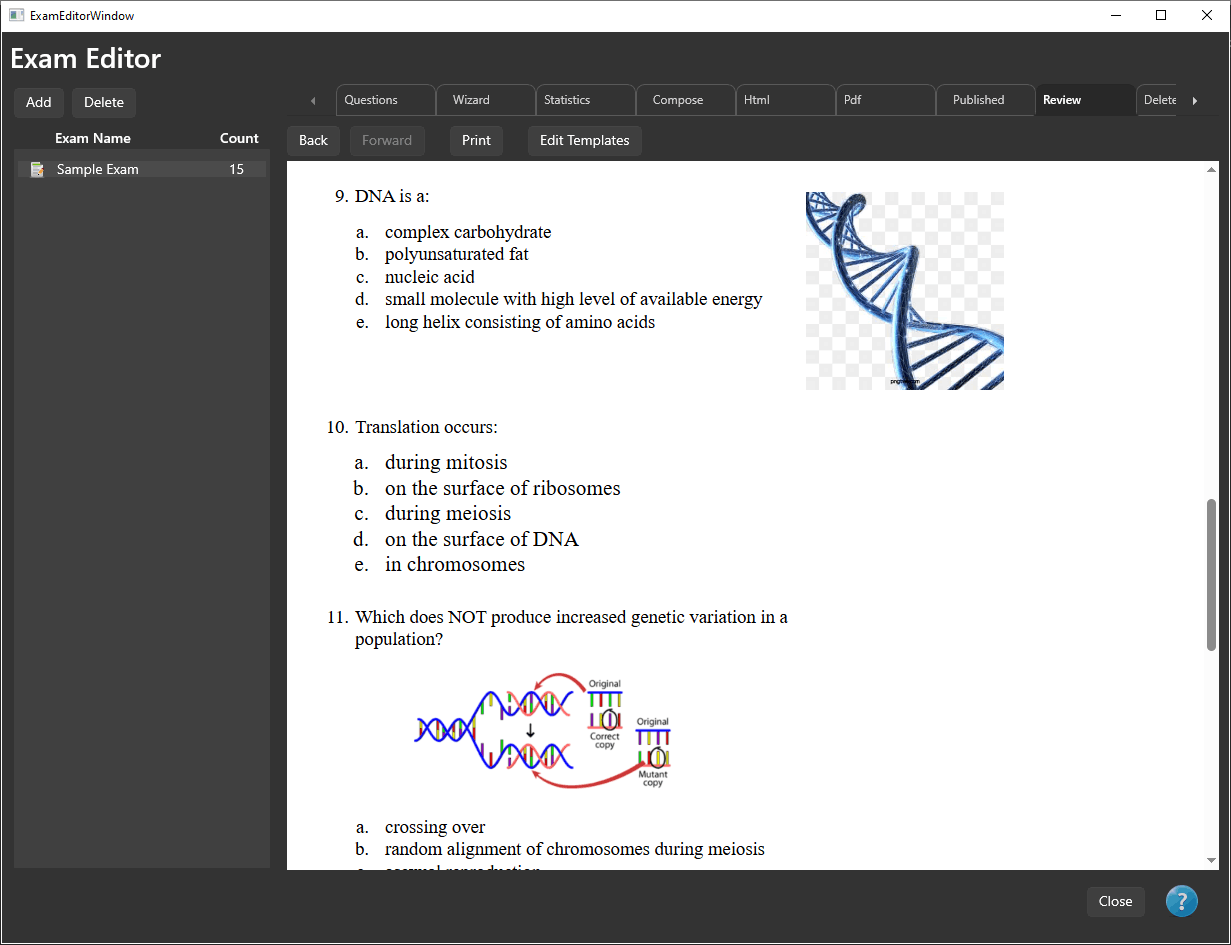
Use the Review tab to inspect the finished HTML and PDF files, verify mathematical expressions and images, check form numbering and answer keys, and print the exams. The Published tab provides tools to manage or copy previously published files.

PrimeExam reviewing published HTML and PDF exams
Review the published HTML and PDF forms before distribution. Click for the full-size screenshot.

Learn more about exam creation

Visit the PrimeExam help documentation for step-by-step instructions on generating exams, working with compositions, and publishing exam forms.

Try PrimeExam for Windows

Explore question banks, random exam generation, composition, and publishing tools with the free trial available through the Microsoft Store. Features included in the trial depend on the version currently offered.