
The Random Exam Wizard automatically creates an exam by randomly selecting questions from one or more question banks according to criteria that you specify.
Instead of manually selecting individual questions, you define the characteristics of the exam, and PrimeExam chooses the questions for you.
The Random Exam Wizard is especially useful when creating multiple versions of an exam or generating practice exams.
When the Wizard Works Best
The Random Exam Wizard produces the best results when:
- The selected question banks (or collections) contain a large number of questions.
- Questions have complete and accurate attributes, including:
- Question type
- Difficulty level
- Topics
- Resources
- Question index groups
The more complete the question information, the greater the flexibility PrimeExam has when selecting questions that satisfy your criteria.
Opening the Wizard
To open the Random Exam Wizard:
- Open the Exam Editor window.
- Click the Wizard button or select the Wizard tab.
The wizard guides you through each step of the exam generation process.
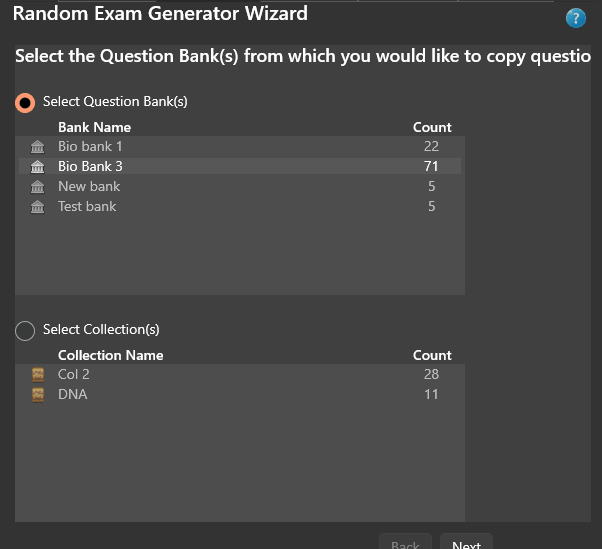
Selecting Question Banks
The first page allows you to select one or more question banks.
If a question bank contains collections, you may choose to generate the exam from:
- The entire question bank.
- One or more collections within the question bank.
Using collections allows you to limit question selection to a specific subset of questions.
Click Next when you have finished selecting the source question banks.
Selecting the Number of Questions
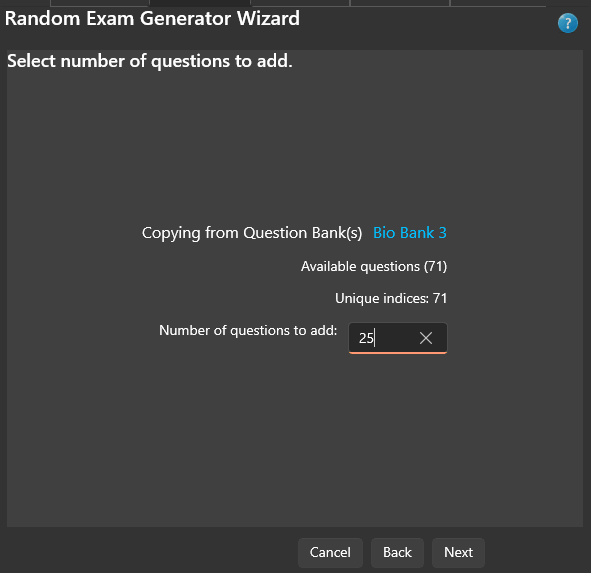
The next page allows you to specify the total number of questions to include in the exam.
Enter the desired number of questions and click Next.
Selecting Question Type Criteria
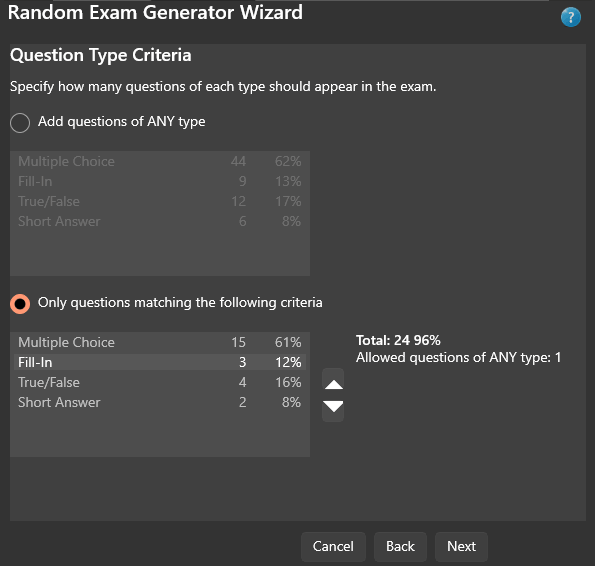
The Question Type page determines how question types are selected.
Two selection modes are available.
ANY Question Type
The Add Questions of ANY Type option tells PrimeExam to use the natural distribution of question types within the selected question banks.
The statistics displayed on this page show:
- The number of questions of each type.
- The percentage of each type.
When this option is selected, PrimeExam randomly selects questions so that the resulting exam closely reflects the same statistical distribution.
For example, if approximately 60% of the available questions are Multiple Choice and 40% are True/False, the generated exam will tend to follow that same ratio.
ONLY Selected Question Types
The Only Questions Matching the Following Criteria option allows you to specify your own preferred distribution.
The wizard initially displays the current statistical distribution, but you may adjust the percentages as desired.
For example, you might specify:
- 50% Multiple Choice
- 25% True/False
- 15% Fill-In
- 10% Essay
PrimeExam then attempts to satisfy those percentages while randomly selecting questions.
Selecting Difficulty Criteria
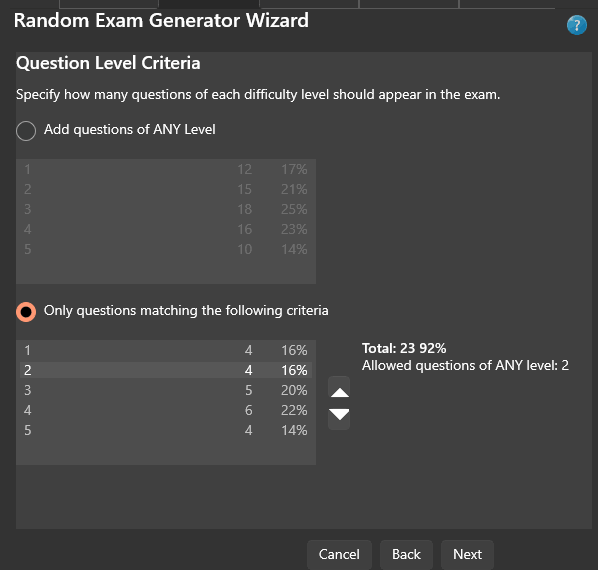
The Difficulty page operates in the same way as the Question Type page.
You may choose:
- ANY Difficulty, allowing PrimeExam to preserve the natural distribution of difficulty levels.
or
- ONLY Selected Difficulty Levels, allowing you to specify the desired percentage of questions from each difficulty level.
Click Next to continue.
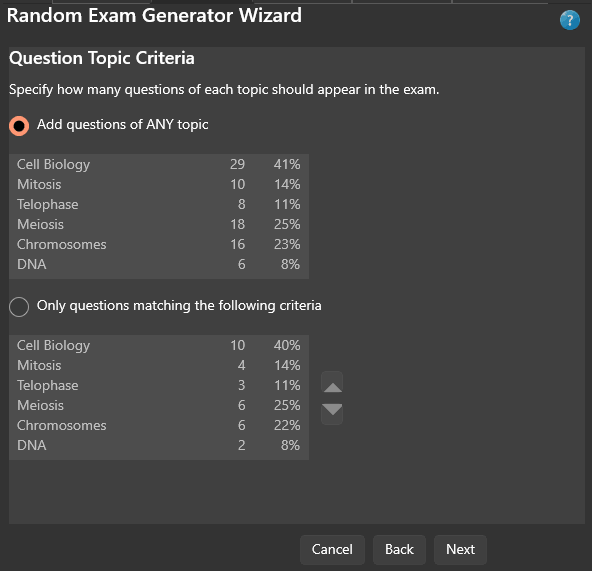
Selecting Topic Criteria
The Topic page also supports ANY and ONLY selection modes.
Using ANY allows PrimeExam to preserve the natural topic distribution found within the selected question banks.
Using ONLY allows you to specify the desired topic distribution for the generated exam.
This is particularly useful when creating exams that emphasize specific subject areas.
Click Next to continue.
Selecting Resource Criteria
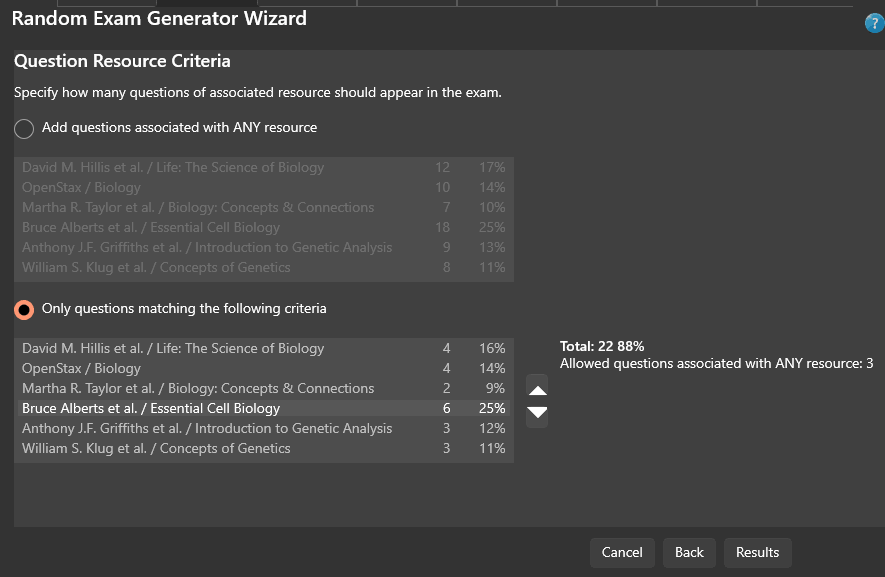
The Resource page is the final criteria page.
Like the previous criteria pages, it supports both ANY and ONLY selection modes.
After selecting the desired resource criteria, click Results.
PrimeExam generates a random exam using the specified criteria.
Reviewing the Results
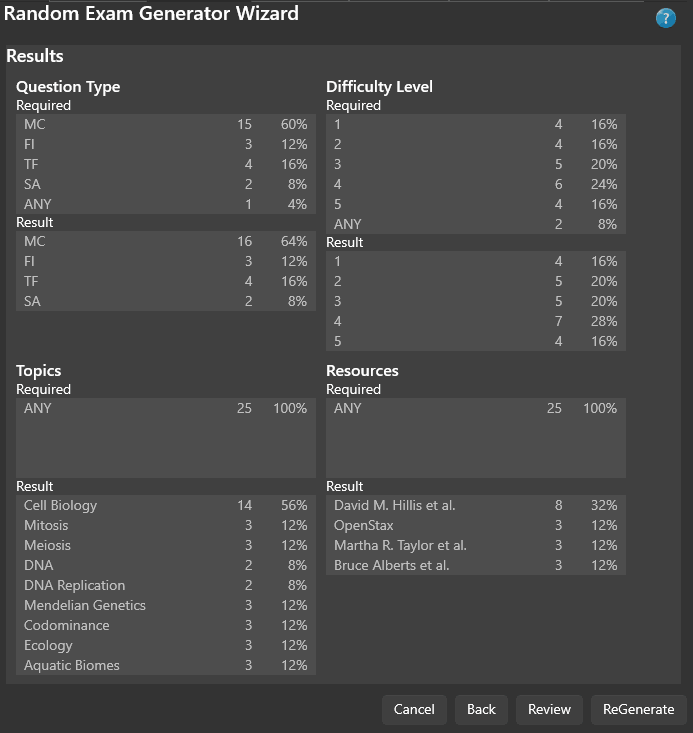
The Results page summarizes the generated exam.
It displays statistical information describing the selected questions.
Review the results to determine whether the generated exam meets your expectations.
If you are not satisfied, you have two options:
- Return to any previous wizard page and modify the selection criteria.
- Click Regenerate to generate a different random selection using the same criteria.
Because question selection is random, regenerating the exam often produces a different but equally valid result.
Reviewing the Selected Questions
Click Review to display the questions selected for the generated exam.
This page allows you to examine the actual questions before accepting the exam.
If necessary, you may:
- Return to previous wizard pages.
- Modify the selection criteria.
- Click Regenerate to produce another random selection.
Creating the Exam
When you are satisfied with the generated exam:
- Click Accept.
- Enter the name of the new exam.
- Click OK.
PrimeExam creates a new exam containing the selected questions.
The new exam may then be reviewed, edited, and published just like a manually created exam.
Canceling the Wizard
You may cancel the Random Exam Wizard at any time before accepting the results.
Canceling the wizard does not modify existing exams or question banks.
Best Practices
To achieve the best results:
- Maintain large, well-organized question banks.
- Assign complete question attributes whenever possible.
- Use question index groups to prevent similar questions from appearing together.
- Review each generated exam before publishing.
- Use Regenerate several times when multiple acceptable exams are possible.