
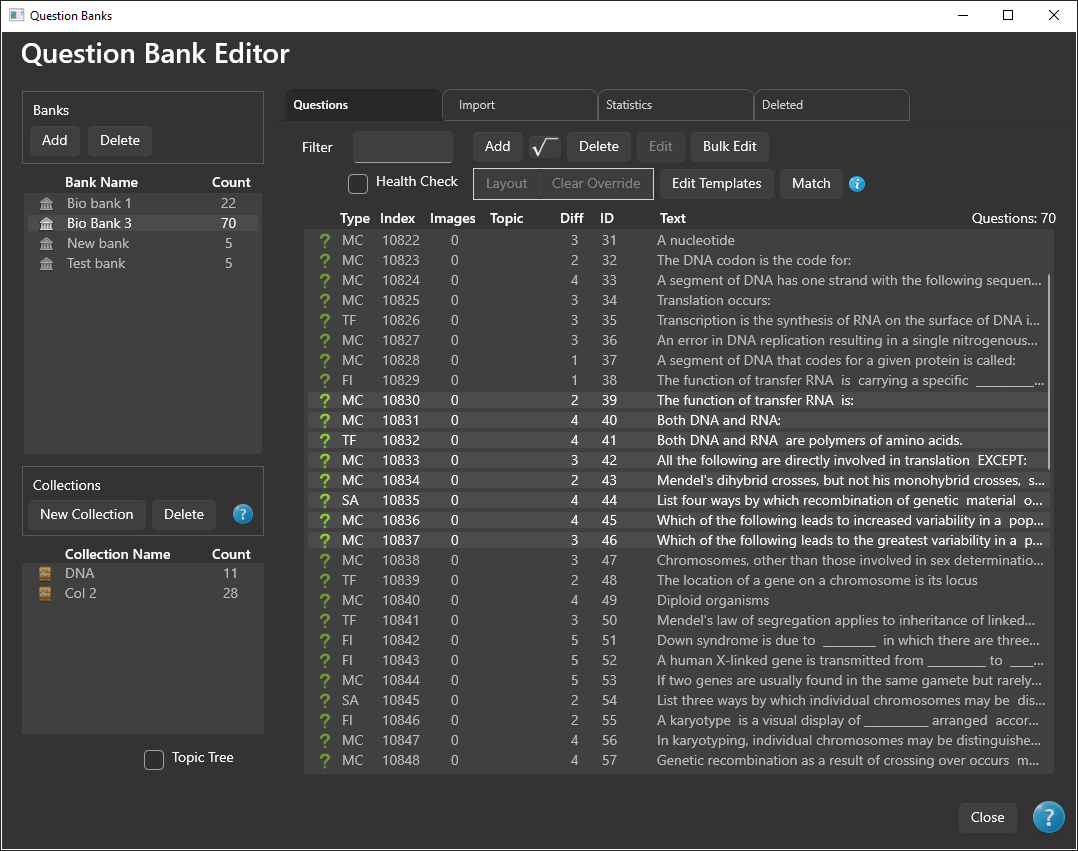
The Question Bank Window is the primary workspace in PrimeExam. It is where question banks are created, maintained, searched, and organized.
From this window you can create new question banks, edit questions, organize collections, manage layouts, and view statistics.
For most users, this is the window in which the majority of authoring work takes place.
Creating Question Banks
Question banks can be created manually or by importing questions from text files.
For detailed instructions, see Creating Question Banks.
Question Bank List
The left side of the window displays all available question banks.
From this list you can:
- Create new question banks.
- Select an existing question bank.
- Delete or restore question banks.
- Switch between active question banks.
Collections
Collections provide a way to organize subsets of questions within a question bank.
The Collections panel allows you to:
- Create a new collection.
- Delete a collection.
- View the questions contained within a collection.
- Close the collection view.
Questions can be added to a collection in two ways:
- Select one or more questions and click Add to Collection.
- Drag and drop questions from the main question list into the collection question list.
For more information, see Collections.
Question List
The main question list displays the questions belonging to the selected question bank or collection.
From this list you can:
- Search for questions.
- Filter questions by topic.
- Add new questions.
- Edit existing questions.
- Delete questions.
- Perform bulk editing.
- Match similar questions.
- Create layout overrides.
- Edit layout templates.
Finding Questions
Questions can be located using either:
- The Question Bank Topic Tree
- The search box above the question list
These tools can be used independently or together to quickly locate specific questions.
Health Check
Enable the Health Check checkbox above the question list to identify questions that may be missing important information.
For additional information, see Question Bank Health.
Adding Questions
To create a standard question, click Add New.
To create a question containing mathematical notation, click the New Math Question button, identified by the square-root symbol.

Both buttons open the Question Editor. When opened using the New Math Question button, the editor starts in Math Question mode so that mathematical content can be entered using the Math Editor.
Editing Questions
Select a question and click Edit, or simply double-click the question.
The Question Editor opens for the selected question.
Deleting Questions
Select one or more questions and click Delete.
For more information, see Deleting Questions.
Bulk Editing
To edit multiple questions at the same time:
- Select two or more questions.
- Click Bulk Edit.
The Question Editor opens in Bulk Edit mode.
See Bulk Edit.
Question Layout Overrides
Individual questions can have their own layout overrides.
To edit a question layout:
- Select the question.
- Click Layout.
For more information, see:
Layout Templates
Reusable layout templates are edited by clicking Edit Templates.
For more information, see:
Matching Similar Questions
To prevent multiple versions of essentially the same question from appearing on a generated exam, select two or more questions and click Match.
PrimeExam assigns the selected questions to the same question index.
See Question Index.
Statistics
Select the Statistics tab to view information about the selected question bank or one of its collections.
Statistics provide insight into the composition and overall health of the question bank.
Deleted Items
Select the Deleted tab to manage deleted items.
From this tab you can restore or permanently delete:
- Question banks
- Questions
- Collections
Deleted items remain available until they are permanently removed, helping protect against accidental deletion.